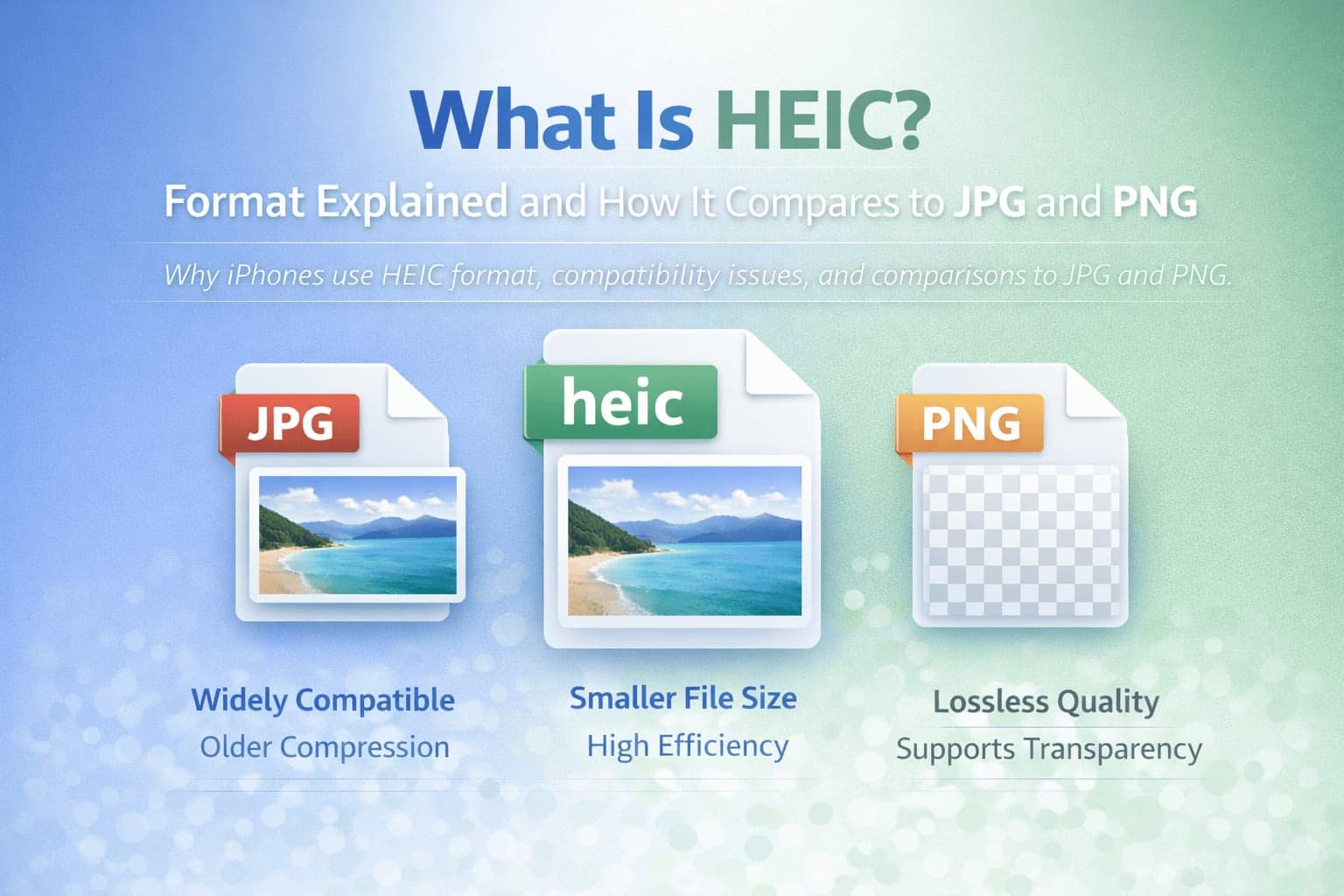
If you have ever transferred photos from an iPhone to a computer and noticed files ending in .heic instead of .jpg, you have encountered HEIC. For many people, HEIC becomes noticeable only when something breaks in their workflow. A photo won't upload to a website, an older app refuses to open it, or a client asks for JPG. That friction is exactly why understanding HEIC matters. Once you know what it is and why it exists, converting it becomes a practical decision rather than a confusing obstacle.
HEIC is not a random "Apple-only" invention. It is a modern image format designed to improve efficiency while maintaining high visual quality. It can store high-quality photos at smaller file sizes and supports advanced features that traditional formats were never built to handle. At the same time, compatibility is still a real-world concern, which is why HEIC to JPG conversion is one of the most common format conversions today.
This guide explains what HEIC is, why iPhones use it, how it differs from JPG and PNG, and when you should convert it.
What Does HEIC Stand For?
HEIC stands for High Efficiency Image Container. It is closely related to HEIF, which stands for High Efficiency Image File Format. In everyday usage, people often say "HEIC" because that is the file extension most commonly used for still images in this format.
The "high efficiency" part is not marketing fluff. The format is designed to deliver similar or better image quality compared to older standards while using less storage space.
Why Do iPhones Use HEIC?
Apple adopted HEIC to solve a growing problem: smartphone photos were getting larger and more detailed every year. Higher resolution sensors, improved dynamic range, and advanced computational photography features all increase file size if you store images using older formats like JPG.
HEIC makes it possible to store high-quality photos with smaller file sizes. That helps save storage on devices and reduces bandwidth when sharing photos via messages, iCloud, or other services.
Another reason HEIC fits iPhone photography is that it supports modern image features more naturally. These include richer color depth, more efficient compression, and the ability to store image-related data in a structured way.
For everyday users, the benefit is simple: you can store more photos without sacrificing image quality.
How HEIC Works
HEIC is a container format that can store image data using efficient compression methods. In many common implementations, it uses compression techniques related to HEVC, also known as H.265. This is one reason HEIC is so efficient. The same family of compression methods that makes modern video smaller can also be used for still images.
HEIC files can store more than just a single static image. They can include metadata, color profiles, and sometimes sequences of images. That matters because modern smartphone photography often involves multiple frames, HDR processing, and other advanced techniques behind the scenes.
In practical terms, a HEIC file is often a high-quality photo with strong compression efficiency. It is designed for modern devices that can process and display images with richer detail and better gradients.
HEIC vs JPG
JPG is the most common image format in the world. It is supported across devices, software, websites, and email clients. When someone asks for an image "in a normal format," they usually mean JPG.
HEIC and JPG differ most clearly in compression efficiency and compatibility.
HEIC often produces smaller file sizes while maintaining similar or better visual quality than JPG. This is especially noticeable in photos with complex textures, gradients, and modern smartphone processing.
JPG, however, is more universally compatible. Many websites, older Windows applications, and legacy workflows expect JPG by default. If you upload a HEIC file to a platform that does not support it, the upload may fail or the file may not preview correctly.
That is why HEIC to JPG conversion is so common. If you need to send photos to someone using a broad range of software, upload to a platform that expects JPG, or use an older editing tool, converting to JPG is often the simplest solution.
It is also important to be realistic about quality when converting. If you convert a HEIC to JPG, the output will use JPG compression, which may slightly reduce quality or introduce artifacts depending on settings. In many everyday scenarios the difference is minimal, but for professional photography workflows, you may prefer formats that preserve more data.
HEIC vs PNG
PNG is usually chosen for graphics, transparency, and lossless output. It is excellent for logos, UI elements, screenshots, and any image where crisp edges and exact pixel detail matter.
HEIC is primarily used for photographs. It is not usually the first choice for logos or UI assets. The key reason is workflow and purpose. HEIC is designed for efficient storage of photos, while PNG is designed for preserving exact visual data and transparency.
If you need transparency, PNG is generally the safer choice because it is widely supported and predictable. If you need to preserve maximum editing flexibility, you may also choose lossless formats.
HEIC can be efficient, but it is not a universal replacement for PNG. The two formats serve different needs.
Why HEIC Photos Sometimes Don't Work on Windows or Websites
Most HEIC "problems" are not problems with the file itself. They are compatibility mismatches.
Some older apps and systems do not include built-in HEIC decoding. That means the photo file is fine, but the software you are using cannot interpret it.
Websites may also reject HEIC uploads because their systems are designed around JPG and PNG inputs. Many platforms still assume those formats and do not support HEIC by default.
If you work with clients, uploading images to CMS platforms, or sharing files across mixed environments, converting to JPG is often the most practical approach.
When You Should Keep HEIC
Keeping HEIC makes sense when you are primarily using modern Apple devices and services. If your photos stay within iOS, macOS, iCloud, and modern apps that support HEIC, there is often no need to convert. You keep smaller file sizes and strong quality.
It also makes sense when storage is a priority. HEIC can help reduce photo library size without a dramatic quality sacrifice.
If you are archiving photos from an iPhone and you want efficiency, keeping HEIC can be a reasonable choice.
When You Should Convert HEIC to JPG
Converting makes sense when compatibility matters more than storage efficiency. If you need to upload to a website that does not accept HEIC, attach a photo in a system that expects JPG, or open the image in software that does not support HEIC, conversion is the straightforward fix.
Conversion is also helpful when you want predictable behavior in print labs, older presentation software, or client workflows. FlipMyFiles provides a simple way to HEIC to JPG.
HEIC and Photo Editing Workflows
For many people, HEIC is an "invisible" format because it works seamlessly on modern devices. Editing apps on iOS and macOS often handle HEIC without issue.
However, professional editing workflows may involve tools that prefer other formats. Some editing pipelines are built around JPG, PNG, or RAW formats. In those cases, HEIC may be a conversion step rather than a final archive format.
It is also worth noting that many iPhones can be configured to save images as "Most Compatible" rather than "High Efficiency," which generally means saving as JPG instead of HEIC. That setting reduces compatibility issues but increases file sizes. There is no universal right answer; it depends on your priorities.
Conclusion: HEIC Is Efficient, But Conversion Is Often Practical
HEIC exists because modern photography demands modern compression. It helps devices store high-quality photos more efficiently, and it supports features that older formats were not designed for.
At the same time, the world still runs on JPG for compatibility. That is why HEIC to JPG conversion is common and often necessary. The best approach is not to treat HEIC as good or bad, but to understand where it fits. Keep HEIC when your workflow supports it, and convert to JPG when you need broad compatibility.